

The Problem
You have a list. Maybe it’s companies you want to research. Maybe it’s leads that need contact info. Maybe it’s URLs you need to scrape. Whatever it is, you’re staring at a spreadsheet full of partial data, knowing you need to fill in the gaps. Manually researching each row would take hours. Building a custom script would take days. Hiring someone would cost money you’d rather spend elsewhere. Fluar solves this problem. It’s a spreadsheet where columns can do work for you - calling AI models, hitting APIs, scraping websites, finding emails - all triggered automatically as you add rows.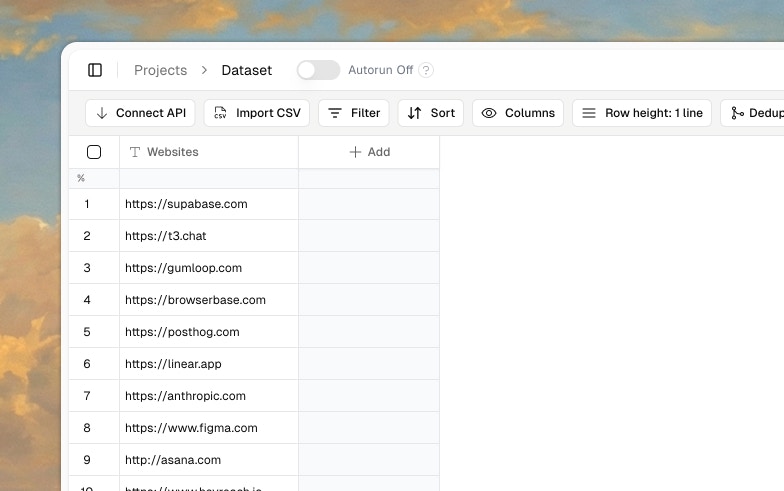
Capture, Enrich, Transform, Export
Every workflow in Fluar follows four steps: Capture, Enrich, Transform, Export (CETE). This is how data flows through the system.Capture
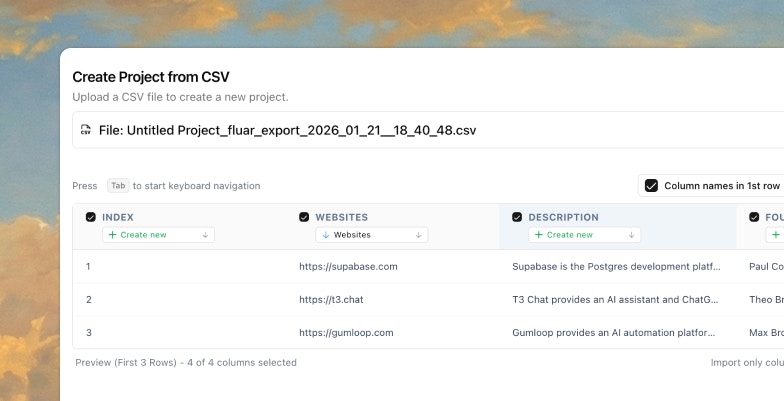
Get your data into Fluar. There are several ways to bring data in:- Upload a CSV file
- Paste data directly
- Enter rows manually
- Connect your CRM (coming soon)
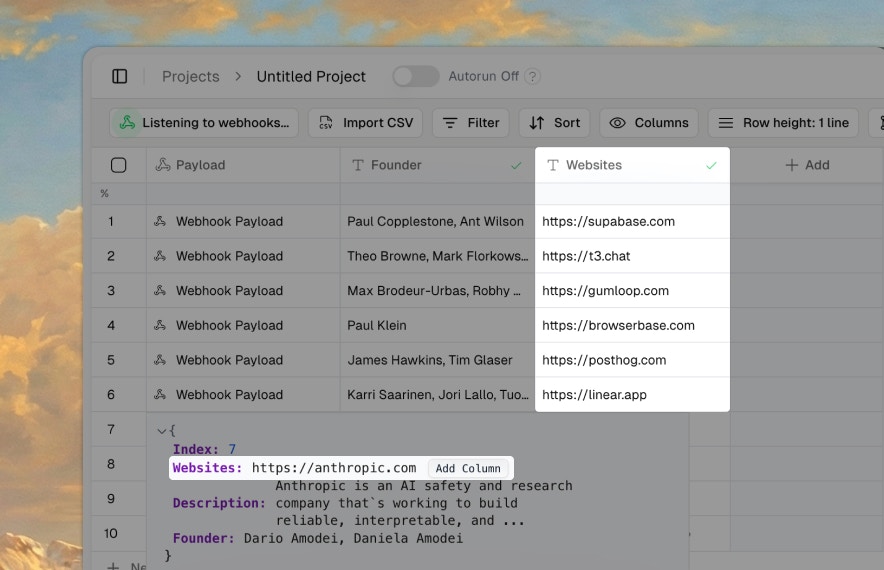
- Receive webhooks from third-party apps
- Scan social media profiles
Enrich
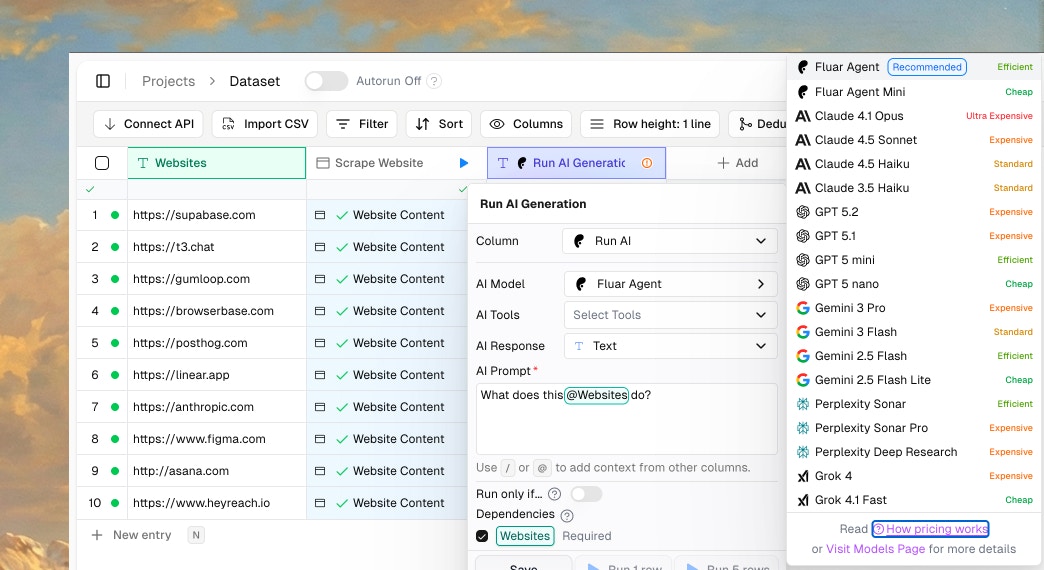
Add information to your data using AI, APIs, and specialized tasks. This is where Fluar does the heavy lifting. You define what information you want, and Fluar fetches it for each row.AI Columns
Ask language models questions about your data:- “Summarize this company based on their website”
- “Classify this lead as B2B or B2C”
- “Write a personalized intro based on their LinkedIn”
API Columns
Call external services:- Find verified emails (Apollo, Hunter, Findymail, Icypeas)
- Get LinkedIn profiles
- Fetch company data
- Call your own internal APIs
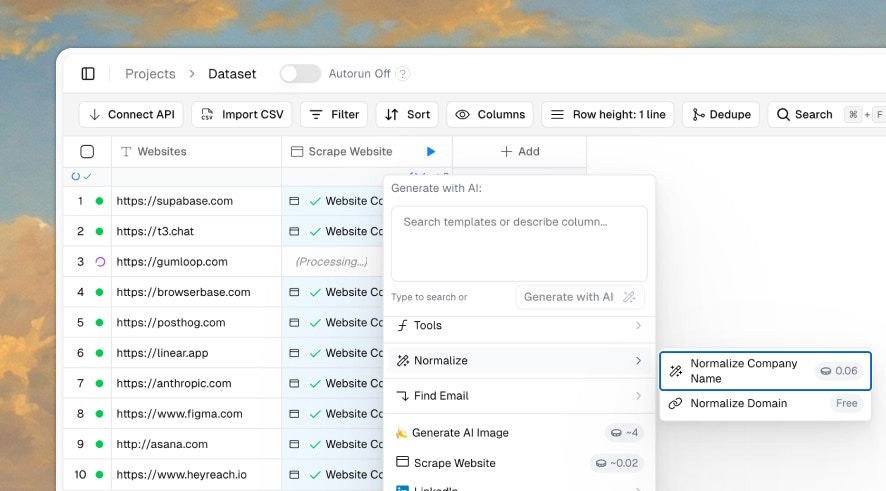
Task Columns
Run specialized operations:- Web scraping: Extract content from any URL
- LinkedIn scraping: Get profile data in seconds
- OCR: Extract text from PDFs and images
- Email waterfall: Try multiple providers until one finds a valid email
Transform
Clean, format, and extract specific values from your enriched data. After enrichment, you often need to massage the data.Reference Columns
Extract specific fields from complex data:- Pull
company.employee_countfrom a JSON response - Get the first email from an array of results
- Navigate nested objects with JSON path syntax
Regex Columns
Find patterns in text:- Extract phone numbers from unstructured text
- Pull domain names from URLs
- Find dates in various formats
AI Formatting
Clean and standardize:- Normalize company names (“Apple Inc.” → “Apple”)
- Format phone numbers consistently
- Generate clean summaries from raw scraped content
Export
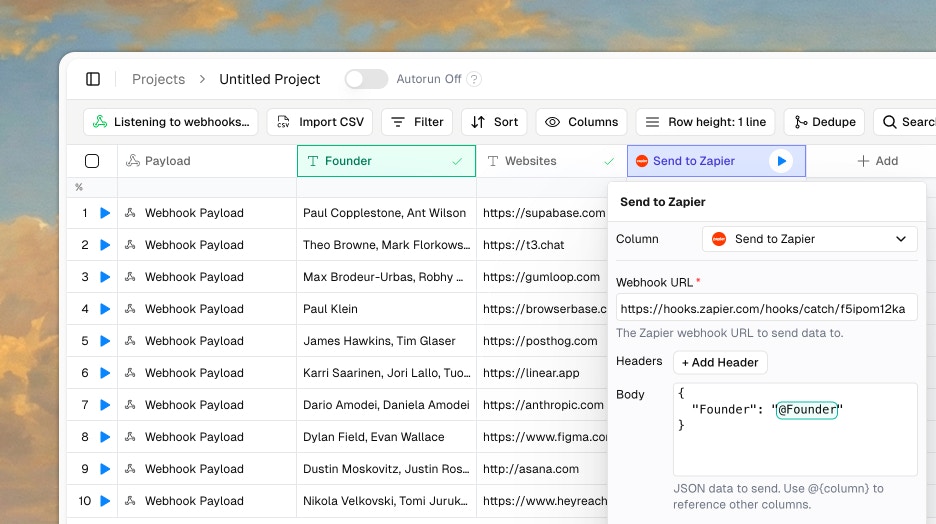
Get your enriched data out of Fluar. Once your data is complete, export it to wherever it needs to go.CSV Export
Download everything with all enrichments included. Select which columns to include.Webhook Integrations
Push data to automation platforms:- Zapier workflows
- n8n automations
- Make scenarios
Direct Integrations
Send data to specific tools:- Add leads to Instantly campaigns
- Push to HeyReach for LinkedIn outreach
- Send Slack notifications
- Sync event data with Luma
CETE in Practice
Here’s a concrete example: Enriching a list of companies with decision-maker contacts.Capture
Upload a CSV with company names and domains.Enrich
- Add an AI column to research each company’s industry and size from their website
- Add a LinkedIn scraper to find the VP of Sales
- Add an email waterfall to find their verified email (tries Findymail → Hunter → Apollo until one succeeds)
Transform
- Add a reference column to extract just the email address from the response
- Add an AI column to write a personalized first line based on their LinkedIn profile
Export
Download the CSV with all new columns, or push directly to Instantly for email outreach. What would take hours of manual research happens automatically as rows process through the pipeline.Key Concepts
Before you start building, understand these core ideas:Dependencies
Columns can depend on other columns. If your AI column references@{Company Website}, it won’t run until that column has a value. Fluar handles the execution order automatically.
Triggers
Enrichment doesn’t start automatically. You select rows and click “Trigger” to start processing. This gives you control over when credits are spent.Filter Conditions
Control when columns execute. For example, only run the email finder if@{LinkedIn_URL} exists. Only run expensive enrichments on high-priority leads.